To manage copyright protection effectively, you need to understand how to protect your verified profiles, submit manual DMCA takedowns, and track removal results.
This guide explains how Rulta’s whitelist system, manual submission tools, and results sections work together to keep your content protected at all times.
How to File a DMCA Takedown Manually
If you want to send a takedown notice yourself, follow these steps.
- Visit the website hosting your content and look for a DMCA, Copyright, or Contact page.
- Fill out their required form or send an email with the requested details, then submit your notice and wait for a response.
- Most websites respond within 2 to 10 days, but not all comply. If their servers are located in countries that do not enforce DMCA laws, they may ignore or delay your request.
- If the website ignores your request, you can request removal from Google Search. This does not delete the content from the website but makes it invisible on Google and Bing, which significantly reduces traffic.
Why Rulta Is Faster and Easier
Filing DMCA notices manually takes time and often requires sharing personal information. Rulta automates the entire process while protecting your privacy.
- No personal information shared
- Automatic scans every 30 minutes
- Google delistings in 4 to 24 hours, website removals in 2 to 4 days
- Human takedown agents for priority cases
How to Submit Manual Takedown Requests
All Rulta plans include automated DMCA removals. Creators can also submit URLs manually for urgent or priority removals.
Manual Submission Limits
| Plan | Manual Takedown Limit | Review Time |
|---|---|---|
| Pro Plan | 10 URLs per day | Within 24 hours |
| Premier Plan | 20 URLs per username per day | Within 24 hours |
| Legend Plan | Unlimited | Within 24 hours |
Most websites respond within 2 to 4 days.
Every manual request is reviewed by real takedown agents to ensure legal and compliance standards are met.
How to Make a Manual Submission
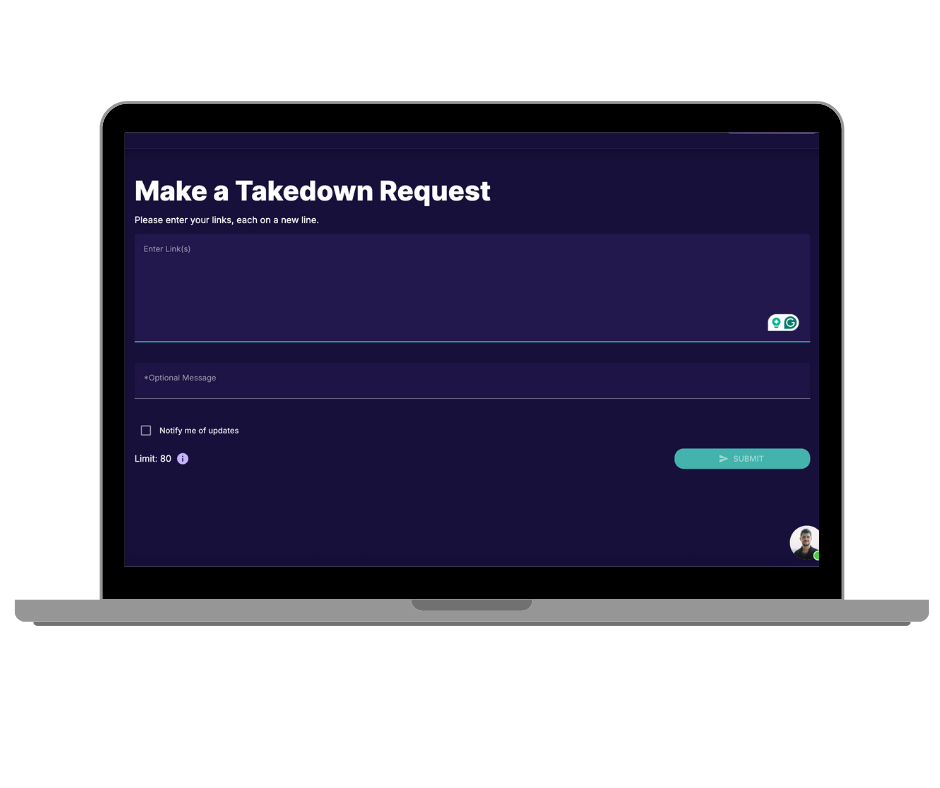
- Log in to your Rulta Dashboard.
- Click the hammer icon on the right side, or go to Manual → Make a Request.
- Enter the URLs you want to report.
- Optionally, include a note for the team.
- Click Submit.
All manual submissions are processed within 24 hours.
If you are reporting links from Google Search, make sure they follow the correct URL format.
To collect links faster, use the Rulta Chrome Extension. It lets you copy and submit links directly from your browser.
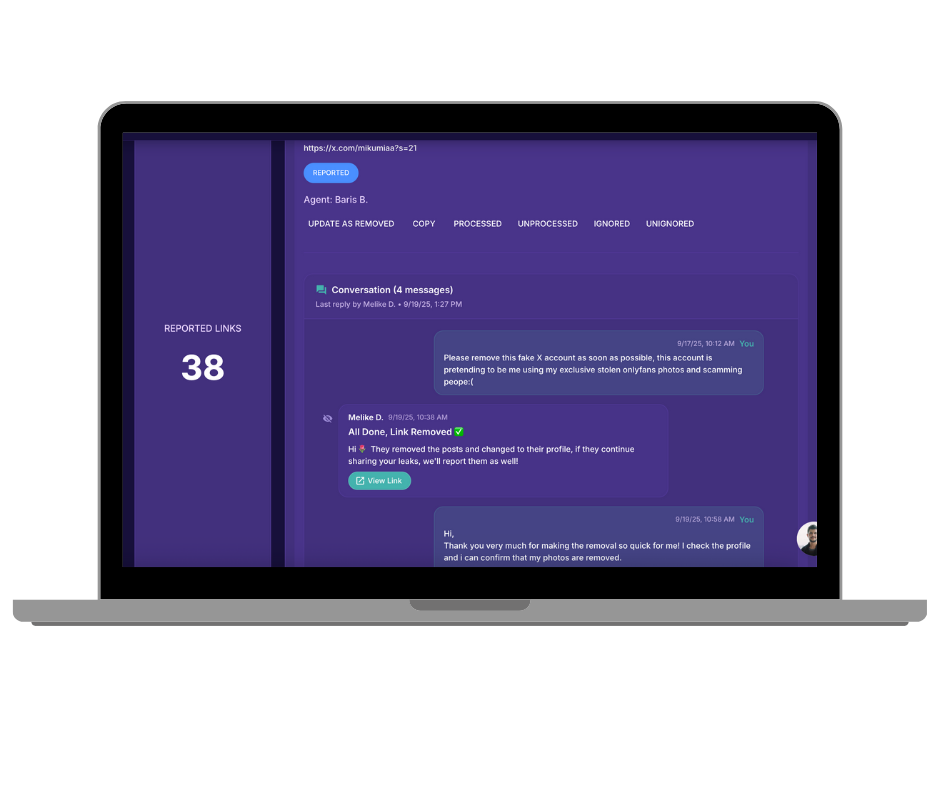
Tracking Your Manual Submissions
To track your manual DMCA requests:
- Go to the Personal Agent tab in your dashboard.
- Chat directly with your assigned agent about any removal.
- Reply to existing requests for updates. You will receive a response within 24 hours.
We monitor every takedown case until it is resolved, giving you full visibility into the process.
When to Wait Before Making Manual Requests
If you are a new subscriber, wait 48 hours after activation before sending manual takedowns.
This allows Rulta’s automated scanners to complete their first scans and prevents overlap with automated reports.
What Is the Whitelist in Rulta
Rulta automatically distinguishes between legitimate content and leaked content.
Scanners are designed to protect your social media profiles, including posts with OnlyFans watermarks or verified download links.
To avoid accidentally reporting your own accounts, add them to your whitelist. This tells Rulta that these profiles and websites belong to you and must not be reported.
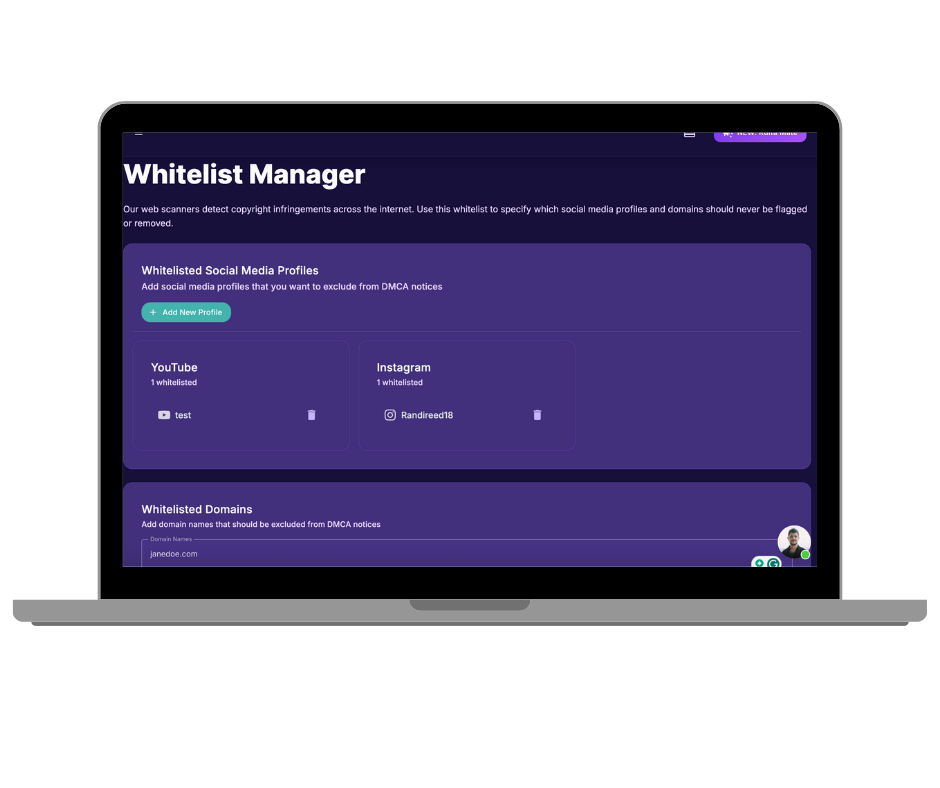
How to Whitelist Your Usernames
- Log in to your Rulta Dashboard.
- Go to Settings → Whitelist.
- Select the platform or website you want to whitelist.
- Enter your username according to platform instructions.
- Do not use special characters such as @, ?, =, &, or https.
- Click Add New Profile and confirm after reviewing the link.
You can also whitelist your personal website to prevent accidental delisting or takedowns.
Note: You do not need to whitelist major creator platforms such as OnlyFans, Chaturbate, or Patreon. These are already whitelisted by default.
To disable scanning for a platform, go to Dashboard → Settings → Platform Settings and turn it off.
How to View Your Results and Reports
Rulta’s dashboard provides full transparency into your protection progress.
Results Tab
This section shows all websites reported on your behalf.
You can filter results by:
- Delisted
- Removed
- Notice Sent
- New
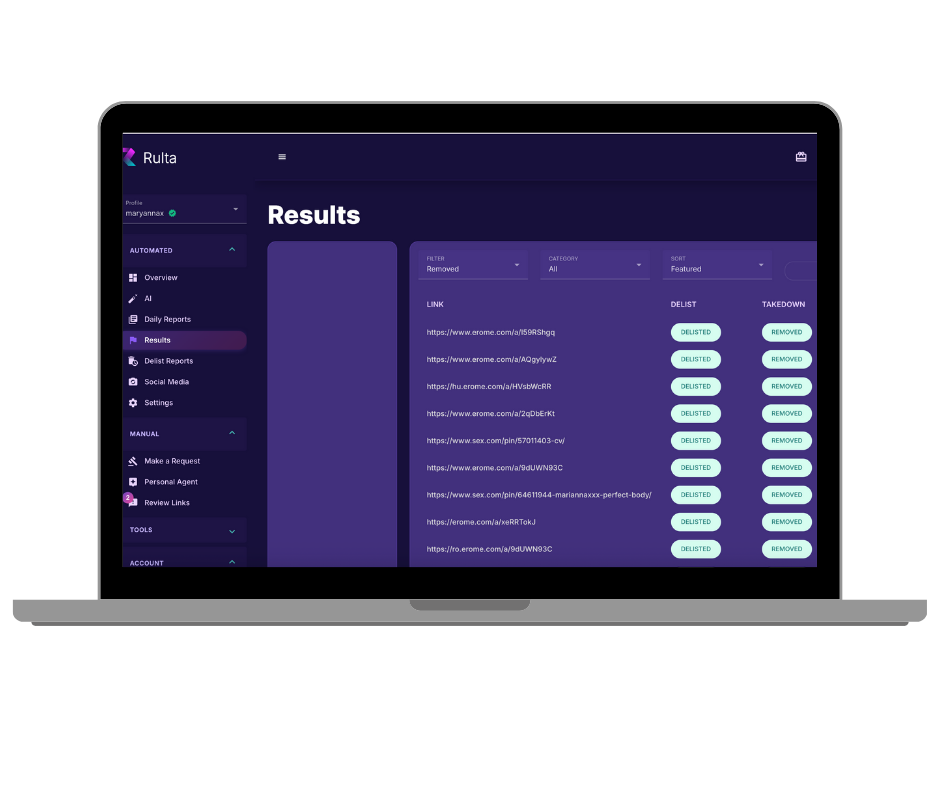
Each entry includes the website link, removal status, and progress updates.
Delist Reports Tab
This tab shows all Google and Bing delistings, including direct links to your official transparency reports.
Google transparency reports display the total number of URLs removed under your copyright.
Strengthening Your Username Scanning
To expand scanning coverage, go to Dashboard → Settings → Search Terms.
Here you can add new keywords related to your content niche or brand style.
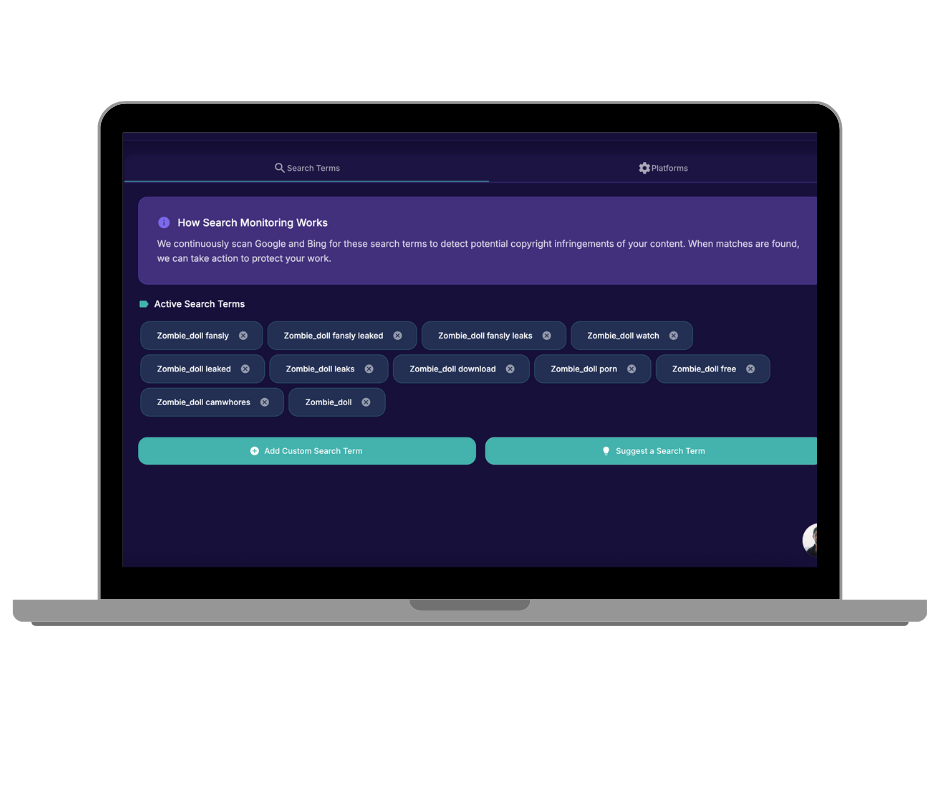
Search terms should be general and industry-related. Your username remains unique.
You can suggest as many terms as you want. Rulta’s team reviews and approves the most effective ones.
Rulta uses AI-powered image and face recognition, so even if your username is not mentioned, unauthorized uploads can still be detected and reported automatically.
Summary
Rulta gives creators full control over copyright protection:
- Whitelist verified profiles to prevent false reports
- Submit manual takedowns for urgent cases
- Track results directly from the dashboard
- Improve detection with keywords and AI-based scanning
With Rulta, your original content stays protected through fast, automated, and transparent enforcement.
